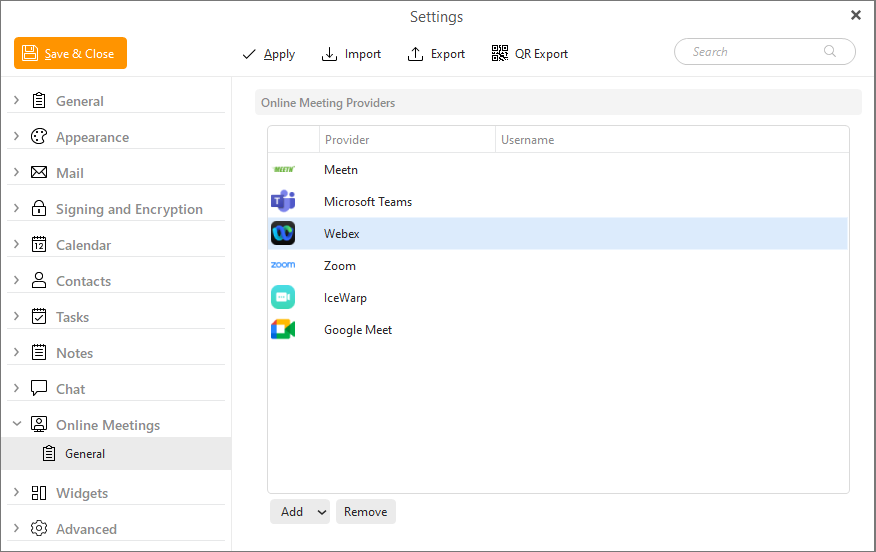
eM Client currently supports these Online meeting providers:
To add online meeting integration, you can go to Menu > Settings > Online Meetings > General.
Then click the Add button at the bottom of the window and select the online meeting service you wish to add.
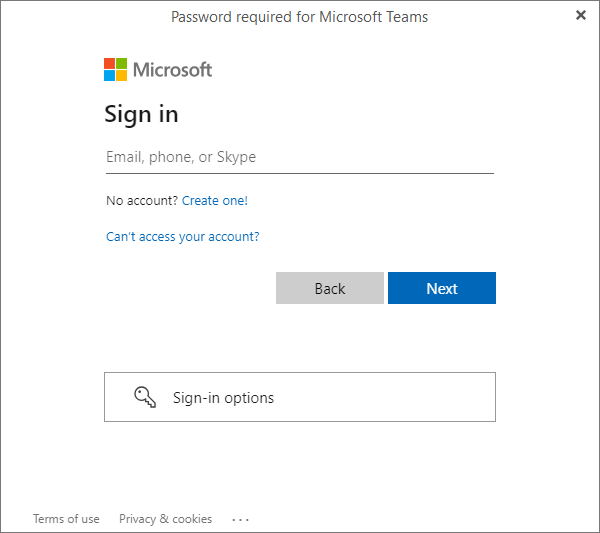
Next, you will sign it to your online meeting service using your normal login credentials.
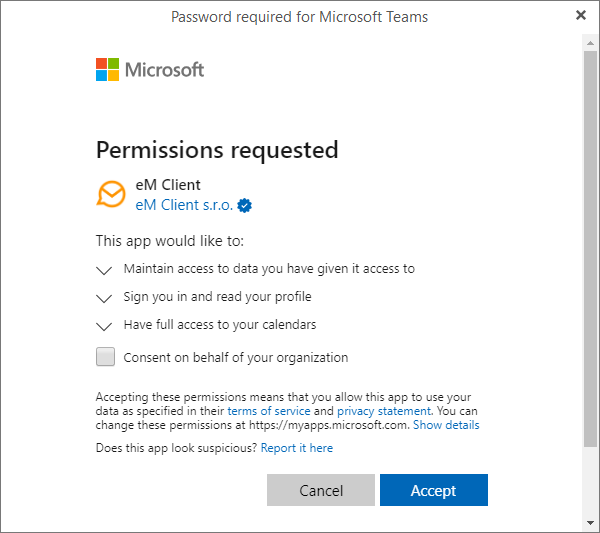
Then, you will need to accept the permissions for eM Client to connect to the online meeting service
Finally, the service will be added to your list of online meeting providers, and you can select that service when creating an online meeting.
By default, users who have enabled Google Calendar access already have Google Meet added as an Online Meeting provider for every one of their Google Accounts in eM Client, and they can only be removed by disabling the Google Calendar service for that account.
Adding Zoom to eM Client may require a manager’s permission, depending on the setup of your organization’s Zoom account, otherwise (as a single user with Admin rights) you will need to click the Pre-Approve button.
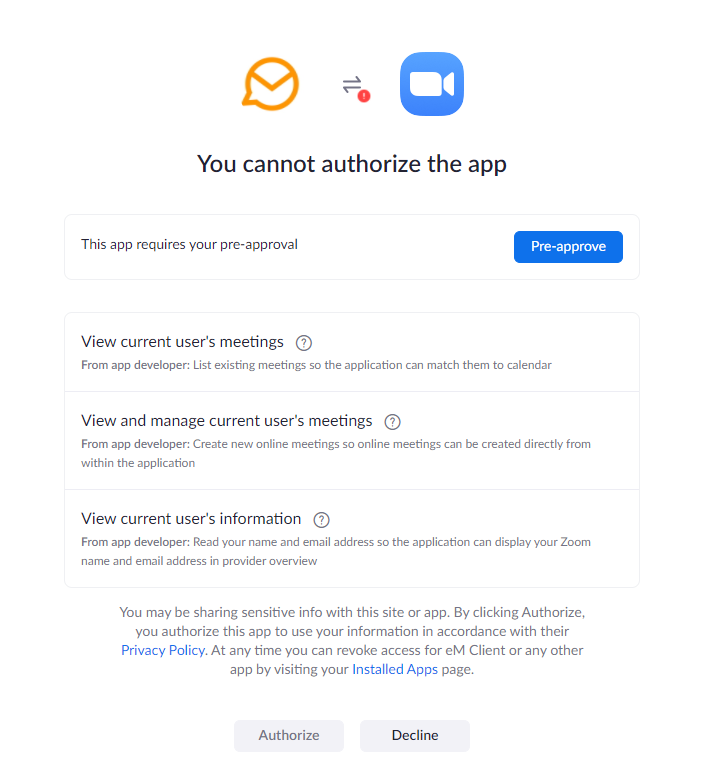
Then you will be able to Authorize the account for eM Client:

If you don’t have admin rights for your Zoom account, or eM Client isn’t pre-approved in Zoom by your organization, this means that you will need to set up Zoom in eM Client twice. First to send the pre-approval request, then to actually add the Zoom service. You will need to take the following steps.
For Webex you will need to just login via the oAuth window that pops up: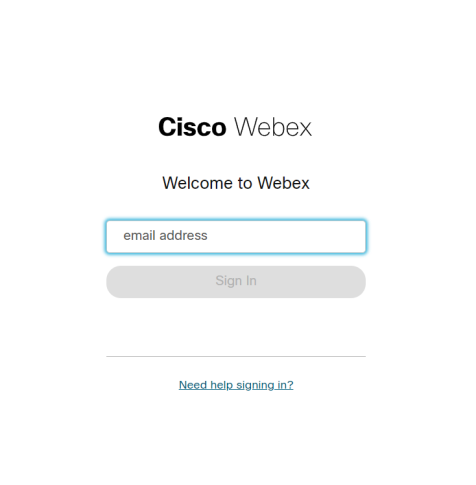
By default, users who set up an IceWarp account using SmartDiscovery will have automatically enabled access to IceWarp Video Conferences in eM Client.
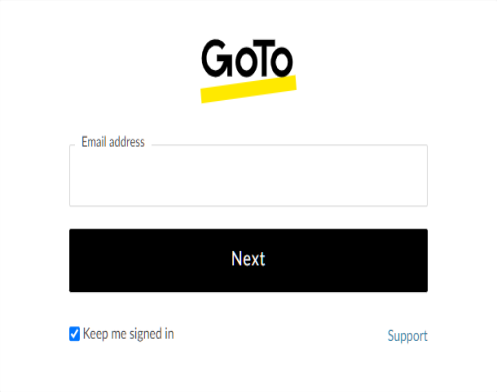
For GoToMeeting you will need to just login via the oAuth window that pops up:
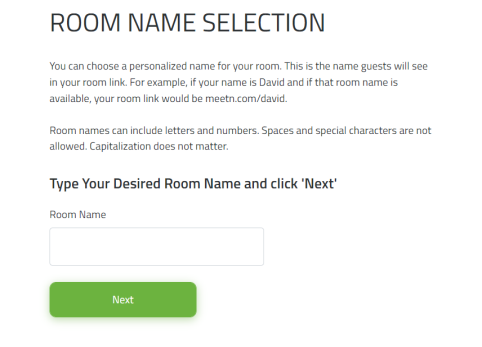
You will be prompted to create or insert a Room name when adding Meetn to eM Client:
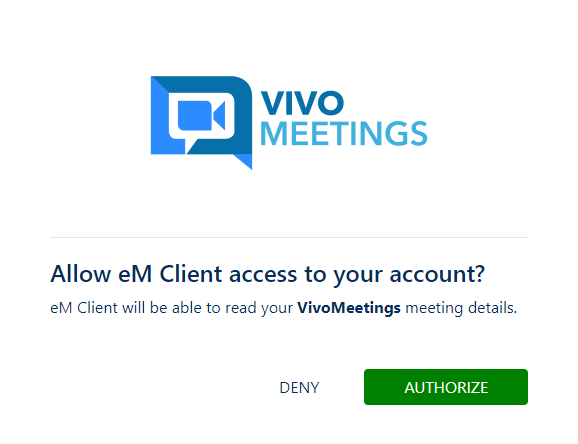
In a separate browser window you will be prompted to sign into your Vivomeetings account with your standard login credentials for the service.
If you are already signed into your browser, simply click Authorize.
To remove Microsoft Teams or Zoom, select them from the list of providers and click the Remove button.

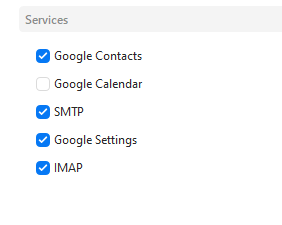
Because Google Meet is tied to the Google Calendar function, the only way you can remove the service from eM Client is by disabling your Google Calendar service, which means your Google Calendar will no longer appear in eM Client.
If you still wish to remove it, you can go to Menu > Accounts > Select your Google account > General Tab > Services > Uncheck the box for Google Calendar.
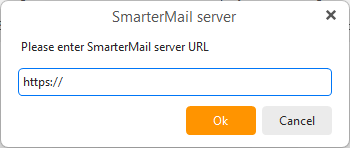
SmarterMail is added for Online Meetings automatically when you add a SmarterMail account using the Automatic setup in Menu > Accounts.
Or you can add the URL of your domain manually.